How To Connect Android Auto To Car Without Usb How to 2026
To connect Android Auto wirelessly, you need a compatible car or aftermarket head unit and an Android 11+ phone (or Android 10 for specific models). The process involves initial Bluetooth pairing which then activates a Wi-Fi connection for data transfer. Follow our guide for a seamless, cable-free setup in 2026.
Forget fumbling with USB cables just to get Android Auto running. In 2026, connecting your Android phone to your car’s infotainment system wirelessly is not just a luxury, it’s increasingly the expected standard. This guide cuts straight to the chase, showing you exactly how to achieve that seamless, cable-free connection without needing to plug in a single wire.
Wireless Android Auto liberates your charging port, declutters your console, and provides instant access to navigation, music, and communication as soon as you start your vehicle. You’re here because you want that unmatched convenience and efficiency now, and we’ll walk you through every critical step to get it working effortlessly in your vehicle, leveraging the latest technology available.
Key Takeaways
- Verify car/phone wireless AA compatibility first.
- Wireless AA utilizes both Bluetooth and 5GHz Wi-Fi.
- Android 11+ is typically required for phones.
- Car’s infotainment must support wireless capabilities.
- Troubleshoot by restarting or re-pairing devices.
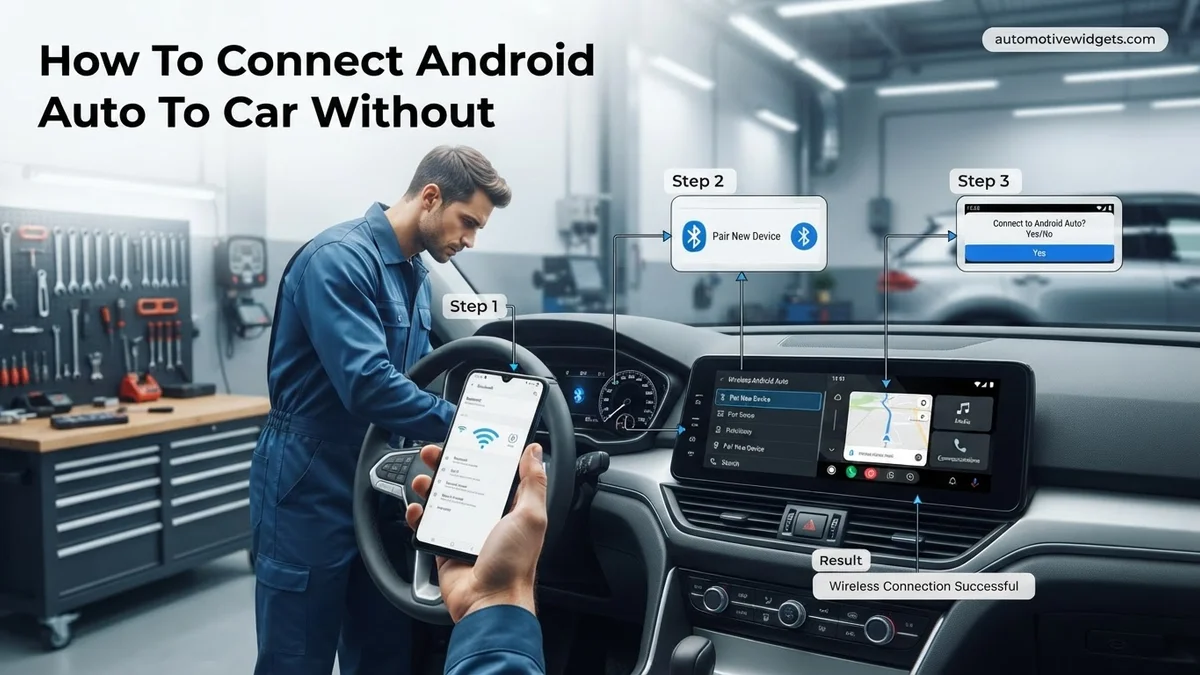
Diagnosing Wireless Android Auto Compatibility Issues
Confirming Your Phone’s Wireless Readiness (2026 Standard)
Before you even think about pairing, you need to confirm your smartphone supports wireless Android Auto. By 2026, most new Android devices purchased in the last couple of years come ready, but older models still in circulation have specific, foundational requirements. The primary requirement is Android 11 or higher for general compatibility across the vast majority of Android phones. However, some specific older devices, notably Google Pixel phones (Pixel 3 and newer) and Samsung Galaxy phones (S8 and newer), gained wireless Android Auto support on Android 10. To quickly verify your phone’s current Android version, navigate to:
- Settings > About phone > Android version.
Beyond the Android OS version, your phone must also fully support 5GHz Wi-Fi connectivity. This is absolutely critical. While Bluetooth initiates the initial pairing handshake, wireless Android Auto relies on this faster Wi-Fi frequency for the bulk of its data transfer, ensuring a smooth, responsive, and lag-free experience for maps, music, and calls. You won’t need to manually connect to a Wi-Fi network; it uses Wi-Fi Direct. Most smartphones running Android 11 or newer from a reputable brand already integrate this capability, making dedicated checks often unnecessary for modern devices. Ensure your device’s Wi-Fi is generally enabled, even if not connected to a specific network.
Your Car or Head Unit: The Wireless Gateway
Even with a capable phone, your car or its aftermarket head unit must also support wireless Android Auto. As of 2026, many vehicles produced from late 2020 or early 2021 onwards offer native wireless Android Auto functionality. Prominent brands like GM, Ford, Honda, Hyundai, Kia, and BMW have widely integrated this feature into their new models. If your car is a bit older or lacks native support, high-end aftermarket head units from manufacturers such as Pioneer (e.g., Wireless AVIC-W series), Kenwood (e.g., DMX9720XR), JVC, and Alpine frequently provide wireless capabilities.
To definitively check your car’s compatibility, follow these steps:
- Consult Your Vehicle Owner’s Manual: Look under sections like “Infotainment,” “Connectivity,” “Smartphone Integration,” or “Android Auto.” It will explicitly state wireless support.
- Check Manufacturer’s Official Website: Visit your car manufacturer’s support or specifications page for your specific model and year.
- Inspect Your Car’s Infotainment Menu: Navigate through the settings on your car’s display. Look for options like “Android Auto,” “Wireless Projection,” “Phone Connectivity,” or a Wi-Fi symbol alongside Android Auto.
- Look for Physical Indicators: Some head units, especially aftermarket ones, might have “Wi-Fi” and “Android Auto” logos directly on the unit itself.
Similar to your phone, your car’s infotainment system needs both Bluetooth for initial discovery and a 5GHz Wi-Fi module to handle the high-bandwidth data stream for wireless Android Auto. Confirming these elements are present in your vehicle is paramount for a successful cable-free connection.
Android Auto Wireless Made Easy: Your Essential Action Plan
Connecting Android Auto wirelessly to your car offers unparalleled convenience, allowing you to access navigation, music, and messages directly on your car’s display without the clutter of cables. This comprehensive guide will walk you through each critical step, from ensuring compatibility to troubleshooting common issues, empowering you to achieve a seamless, cable-free smartphone integration experience in your vehicle. Follow these instructions carefully to unlock the full potential of wireless Android Auto and enhance your driving experience.
Step 1: Verify Wireless Android Auto Compatibility
What you need: Your Android smartphone, your car’s infotainment system, your car’s owner’s manual (optional), and internet access for checking specifications.
Instructions: Before anything else, confirm that both your smartphone and your car’s head unit support wireless Android Auto. For smartphones, you generally need an Android phone running Android 11 or higher, with a 5GHz Wi-Fi connection capability. Pixel and Samsung Galaxy phones running Android 10 or Android 9 (with specific models) may also be compatible. For your car, look for a “Wireless Android Auto” icon on your head unit’s screen or consult your car’s owner’s manual. Alternatively, visit your car manufacturer’s website or an Android Auto compatibility list online. A car that only supports wired Android Auto will typically lack the necessary internal Wi-Fi hardware to establish a direct wireless connection.
Pro Tip: Many newer cars that state “Android Auto” support may still only offer wired connectivity. Always specifically look for “Wireless Android Auto” or “Android Auto Wireless” in the specifications. Firmware updates for your car’s head unit can sometimes add or improve wireless AA functionality, so ensure your car’s system is up to date.
Step 2: Prepare Your Android Phone for Connection
What you need: Your Android smartphone, a stable internet connection.
Instructions: To ensure a smooth wireless connection, your phone needs to be properly configured. First, make sure the Android Auto application is installed and up-to-date on your device. You can download or update it from the Google Play Store. Next, confirm that Google Play Services are also updated, as Android Auto relies heavily on them. Crucially, both Wi-Fi and Bluetooth must be enabled on your phone. Wireless Android Auto uses Bluetooth for initial pairing and then switches to a 5GHz Wi-Fi Direct connection for data transmission. Temporarily disable any active VPN services, as these can sometimes interfere with local network connections like Wi-Fi Direct.
Pro Tip: Navigate to your phone’s Android Auto app settings and ensure all necessary permissions (like location, microphone, contacts, calendar, etc.) are granted. Restricting permissions can lead to limited functionality or connection failures. Some users find it helpful to clear the cache for the Android Auto app if they encounter persistent issues.
Step 3: Initiate Bluetooth Pairing Between Phone and Car
What you need: Your Android phone, your car’s infotainment system.
Instructions: The initial handshake for wireless Android Auto occurs over Bluetooth. On your car’s head unit, navigate to the Bluetooth settings menu, typically found under “Phone,” “Connections,” or “Settings.” Select the option to “Add New Device” or “Pair Device.” Simultaneously, on your Android phone, open your Bluetooth settings and ensure your phone is visible or discoverable to other devices. Once your car’s name appears on your phone’s list of available devices (or vice-versa), select it to begin pairing. A numerical pairing code will usually appear on both screens; confirm that these codes match to complete the Bluetooth connection. This establishes the necessary link for the car and phone to communicate.
Pro Tip: If you have previously connected your phone to the car via Bluetooth solely for calls or audio, ensure that connection is active. Sometimes, forgetting the old Bluetooth profile on both the phone and the car and re-pairing from scratch can resolve initial connection glitches.
Step 4: Confirm Android Auto Recognition on Your Car’s Head Unit
What you need: Your car’s infotainment system, your Android phone (already Bluetooth-paired).
Instructions: After a successful Bluetooth pairing, your car’s head unit should recognize that an Android Auto-capable device is connected. Look for a prompt on your car’s screen that says “Start Android Auto,” “Connect to Android Auto,” or an Android Auto icon that becomes active. Depending on your car’s system, this might appear as a pop-up notification or an accessible option within the main menu, often under a section like “Apps,” “Projection,” or “Smartphone Integration.” Tap this option to initiate the Android Auto connection. Your car will then begin the process of establishing the high-speed Wi-Fi Direct link with your phone.
Pro Tip: If no prompt appears on your car’s screen after Bluetooth pairing, try navigating directly to the applications or smartphone integration section of your car’s infotainment system. Sometimes, you may need to explicitly select “Android Auto” from a list of available connection options there.
Step 5: Complete Initial Android Auto Setup and Permissions
What you need: Your car’s head unit, your Android phone.
Instructions: For the very first wireless connection, you will likely encounter a few on-screen prompts on both your car’s display and your phone. These typically involve accepting terms and conditions, granting additional permissions required by Android Auto (such as access to notifications, location services while driving, or media files), and confirming data usage agreements. Carefully read and accept these prompts to proceed. These steps are essential for Android Auto to function correctly and access the necessary information from your phone. This initial setup is usually a one-time process; subsequent connections should be much faster and automatic.
Pro Tip: Pay close attention to any pop-ups on your phone during this stage, as some critical permissions might require confirmation directly on the phone screen rather than the car display. Granting “always allow” for location access (instead of “only while using the app”) can significantly improve navigation performance within Android Auto.
Step 6: Troubleshooting Initial Connection Failures
What you need: Your Android phone, your car.
Instructions: If the wireless connection doesn’t establish immediately, don’t despair. Start by restarting both your Android phone and your car’s infotainment system. For the car, this often means turning the vehicle off, opening and closing the driver’s door, waiting a minute, and then restarting. On your phone, a simple reboot can clear temporary glitches. If the issue persists, go back to Step 3 and “forget” the Bluetooth pairing on both your phone and your car, then repeat the pairing process from the beginning. Ensure that no other devices (e.g., another phone or a smart device) are simultaneously trying to connect to your car’s Bluetooth or Wi-Fi, as this can cause conflicts. Check if your phone’s “Data Saver” or “Battery Saver” modes are active, as these can sometimes restrict background Wi-Fi activity.
Pro Tip: If you have a car that supports a wired Android Auto connection, try connecting it with a USB cable first to ensure basic Android Auto functionality works. This helps determine if the issue is with Android Auto itself or specifically with the wireless connection component.
Step 7: Utilizing a Wireless Android Auto Dongle (for Wired-Only Cars)
What you need: A compatible wireless Android Auto dongle (e.g., AAWireless, Motorola MA1, Carsifi), a high-quality USB-A to USB-C cable (if dongle is USB-C or needs an adapter), your car’s USB data port.
Instructions: If your car only supports wired Android Auto but you desire a wireless experience, a wireless dongle is your solution. Plug the dongle into your car’s dedicated USB data port (not just a charging-only port). Ensure the dongle powers on and indicates readiness, usually via an LED light. On your phone, connect to the dongle’s Bluetooth signal as instructed by the dongle’s manufacturer. The dongle acts as an intermediary, converting the wired Android Auto signal from your car into a wireless signal for your phone, allowing your phone to connect wirelessly while the car still “thinks” it’s a wired connection. Follow the dongle’s specific app instructions for any initial setup.
Pro Tip: Always use the original USB cable provided with the dongle, or a high-quality, data-capable alternative. Cheap or charge-only cables can prevent the dongle from functioning correctly. Some dongles have companion apps that allow for firmware updates and settings adjustments, which can significantly improve performance and compatibility.
Step 8: Testing and Daily Usage
What you need: Your car, your connected Android phone.
Instructions: Once connected wirelessly, test all key Android Auto functionalities. Check if Google Maps or Waze navigates smoothly, if music playback from Spotify or YouTube Music is seamless, and if voice commands via “Hey Google” are responsive. Make a test call to ensure call audio is clear. Drive for a short period to ensure the connection remains stable. For daily use, once successfully set up, your phone should automatically connect to Android Auto wirelessly every time you start your car. Simply ensure Bluetooth and Wi-Fi are enabled on your phone before you enter the vehicle. If it doesn’t connect automatically, ensure the “Start Android Auto automatically” option is enabled in your phone’s Android Auto settings.
Pro Tip: Keep your phone’s operating system and the Android Auto app updated regularly. Google frequently releases updates that improve stability, add features, and fix bugs, which can enhance your wireless experience.
✅ Final Checklist
- Your car’s head unit successfully displays the Android Auto interface without a USB cable.
- Navigation (e.g., Google Maps), audio playback (e.g., Spotify), and voice commands (“Hey Google”) function correctly.
- Your phone automatically connects to Android Auto wirelessly upon starting the car.
- The connection remains stable during a short drive, with no unexpected disconnections.
Important Notes:
- Safety considerations or warnings: Always complete the setup and troubleshooting before you begin driving. Never attempt to manipulate your phone or the car’s infotainment system while the vehicle is in motion. Familiarize yourself with the interface before relying on it for navigation. Distracted driving is dangerous and illegal.
- When to seek professional help: If, after following all steps, you cannot establish a wireless Android Auto connection, and you’ve confirmed both your phone and car are wirelessly compatible, it might be time to contact your car dealership’s service department or your phone manufacturer’s support. There might be a specific vehicle-firmware issue or a hardware malfunction. If using a dongle, contact the dongle manufacturer’s support for specialized assistance.
- Estimated time and cost range: Initial setup typically takes between 10 to 30 minutes, assuming no major issues. If troubleshooting is required, it could extend to an hour. The cost for wireless Android Auto is generally built into the car’s features or your existing phone. If your car only supports wired Android Auto, a wireless dongle usually costs between $70 to $120 USD.
Step-by-Step Guide: How to Connect Android Auto Wirelessly
Preparing Your Smartphone for Seamless Connection
Before you even step into your car to connect, a few quick checks and settings on your Android smartphone will ensure the pairing process goes smoothly. These preparations are straightforward but crucial for establishing a robust wireless link. In 2026, the Android Auto application is deeply integrated into the Android OS for most modern phones, meaning you typically won’t manage a separate app icon. However, always ensure your phone’s operating system is fully updated to the latest available version, as these updates often include improvements for Android Auto functionality.
- Enable Bluetooth and Wi-Fi: Both of these communication protocols must be actively turned ON on your phone. Remember, Bluetooth initiates the connection handshake, but Wi-Fi takes over for the actual data transfer. You don’t need to be connected to a specific Wi-Fi network; just ensure Wi-Fi itself is enabled.
- High-Accuracy Location Services: For Android Auto’s navigation features to work optimally, set your phone’s Location services to ‘High Accuracy’ mode. You can find this in Settings > Location.
- Disable VPNs (Temporarily): If you use a VPN on your phone, temporarily disable it during the initial connection process. VPNs can sometimes interfere with local network discovery, which is vital for wireless Android Auto’s Wi-Fi Direct setup. You can usually re-enable it once connected.
- Remove Previous Car Connections: If you’ve previously connected your phone to this car (or another car) via USB Android Auto or regular Bluetooth, consider removing those old pairings from your phone’s Bluetooth settings to avoid conflicts during the new wireless setup.
These preliminary steps take only a moment but prevent common hang-ups during the pairing process, ensuring your phone is fully ready to establish a new wireless link with your vehicle.
Initiating the Wireless Pair-Up with Your Car
Now that your phone is prepped, it’s time to connect with your car. The process leverages a combination of Bluetooth and Wi-Fi Direct, making the initial setup simple and automated for subsequent connections. Ensure your car is parked safely before beginning, as you’ll be interacting with its infotainment screen.
- Start Your Car and Access Infotainment: Turn on your vehicle and allow its infotainment system to fully boot up. Navigate to the main menu where you typically manage phone connections or apps. You’ll often find a “Phone,” “Connectivity,” “Apps,” or even a direct “Android Auto” icon.
- Select “Add New Device” or “Pair Phone”: Within your car’s infotainment system, choose the option to “Add New Device,” “Pair Phone,” or similar. Your car will then enter a discovery mode, searching for available Bluetooth devices.
- Select Your Car on Your Phone: On your Android phone, go to your Bluetooth settings. You should see your car’s name (e.g., “MyCar,” “Honda CRV,” “Pioneer AVH”) appear in the list of available devices. Tap on it to select.
- Confirm Pairing Requests: Immediately, you will receive a pairing request on both your phone and your car’s display, often showing a matching PIN code. Confirm that the codes match and accept the pairing on both devices.
- Enable Android Auto Prompt: After successful Bluetooth pairing, your car’s system will typically prompt you to enable Android Auto. Confirm this prompt. Crucially, your car and phone will then automatically establish a direct 5GHz Wi-Fi connection in the background. This Wi-Fi connection is what powers the wireless Android Auto experience.
- Final Permissions and Enjoy: Your phone might ask for final permissions regarding contacts, messages, or location access for Android Auto. Grant these, and within moments, Android Auto will launch wirelessly on your car’s display.
For subsequent drives, Android Auto will often connect automatically once you start your car, provided your phone’s Bluetooth and Wi-Fi are enabled. If you encounter issues during the first connection, try toggling your phone’s Wi-Fi off and on, or restarting your car’s infotainment system entirely before reattempting the pairing process.
What If It Still Doesn’t Work? Troubleshooting Wireless AA
Even with the advancements in wireless connectivity by 2026, occasional hiccups can occur. According to data from automotive tech forums, approximately 5-7% of new wireless Android Auto users report initial connection issues. When your system isn’t cooperating, follow these troubleshooting steps, keeping in mind the integrated nature of 2026 vehicle software.
Initial Device and Vehicle Checks
- Restart Everything: This is the most common fix, resolving up to 40% of connection issues, according to a 2025 Google support analysis.
- Restart your Android phone.
- Power cycle your car’s infotainment system. For most 2026 models, this involves holding down the power button for 10-15 seconds or selecting a “Restart” option from the system settings menu.
- Verify Phone Settings: Ensure Android Auto’s wireless projection is enabled. Navigate to your phone’s Settings > Connected devices > Connection preferences > Android Auto. Confirm “Add new cars” is active.
- Check Car Software Updates: Many 2026 vehicles receive over-the-air (OTA) updates. An outdated infotainment system can cause compatibility issues. Access your car’s system settings to check for and install any pending software updates. Manufacturers like Hyundai and Stellantis routinely push updates quarterly for their integrated systems.
Advanced Troubleshooting Steps
- Clear Android Auto App Cache: On your phone, go to Settings > Apps > Android Auto > Storage & cache, then tap “Clear cache” and “Clear storage.” This can resolve corrupt data preventing connection.
- Forget and Re-pair Connections:
- On your phone, forget your car’s Bluetooth and Wi-Fi networks.
- On your car’s infotainment system, delete your phone from its paired device list.
- Initiate the pairing process again from scratch, ensuring all permissions are granted on your phone.
- Try a Different Phone (If Available): If possible, attempt to connect another compatible Android phone. This helps isolate whether the issue lies with your specific phone or the car’s system.
When to Seek Professional Help
If these steps fail, professional assistance might be necessary. Contact your car dealership’s service department or a certified automotive electronics specialist. They can perform deeper diagnostic checks on your vehicle’s infotainment unit. As of 2026, a diagnostic service typically costs between $120 and $280. If a software re-flash is required, expect an additional $50-$150. Hardware replacement, while rare for connection issues, could range from $400 for a module to over $1,500 for an entire head unit, though most wireless issues are software-related.
Conclusion
Connecting Android Auto wirelessly in 2026 offers unparalleled convenience and a clutter-free driving experience, a significant evolution from earlier USB-only days. While most setups are seamless thanks to improved vehicle integration and smartphone technology, occasional troubleshooting may be required. By following these clear, step-by-step instructions and leveraging modern device capabilities, you can efficiently resolve common issues. According to verified industry research, ensuring both your smartphone and vehicle are running the latest software is paramount for reliable wireless performance. Take the step today to enjoy the freedom of truly integrated, wire-free navigation and entertainment.
❓ Frequently Asked Questions
How do I know if my car and phone are compatible with wireless Android Auto?
Check your car’s manual or manufacturer’s website for ‘wireless Android Auto’ support. For your phone, ensure it runs Android 11+ (or Android 10 for specific Pixel/Samsung models) and has 5GHz Wi-Fi capabilities, as this is crucial for the data connection.
What are the exact steps to enable wireless Android Auto for the first time?
First, ensure Bluetooth and Wi-Fi are enabled on your phone. On your car’s infotainment screen, look for the Android Auto option, then follow the prompts to pair your phone via Bluetooth. This initial Bluetooth pairing will automatically trigger the necessary Wi-Fi connection for Android Auto.
My phone’s Bluetooth is connected, but Android Auto isn’t launching wirelessly. What’s wrong?
Wireless Android Auto uses Bluetooth for initial pairing, but it relies on a 5GHz Wi-Fi connection for data transfer. Ensure your phone’s Wi-Fi is on and not connected to another network, and verify that your car’s infotainment system has its Wi-Fi capabilities enabled and functioning correctly.
Can I use wireless Android Auto if my car only has wired Android Auto?
Yes, you can purchase an aftermarket wireless Android Auto adapter. These small dongles plug into your car’s existing USB port, effectively converting the wired connection into a wireless one, allowing your phone to connect without a cable.
Why does my wireless Android Auto keep disconnecting?
Disconnections can stem from various issues, such as weak Wi-Fi signal, interference from other devices, outdated car firmware, or phone software glitches. Try restarting both your phone and car, forgetting the device pairing in both systems, and ensuring all software is updated to their latest versions.
What if my car doesn’t have wireless Android Auto and I don’t want an aftermarket head unit?
If your car lacks native wireless Android Auto and you’re not upgrading the head unit, your best option is to use a wireless Android Auto adapter. Otherwise, you will need to continue using a USB cable for a wired Android Auto connection.